SheetMerge Pro
Turn a spreadsheet into one design page per row
What it does
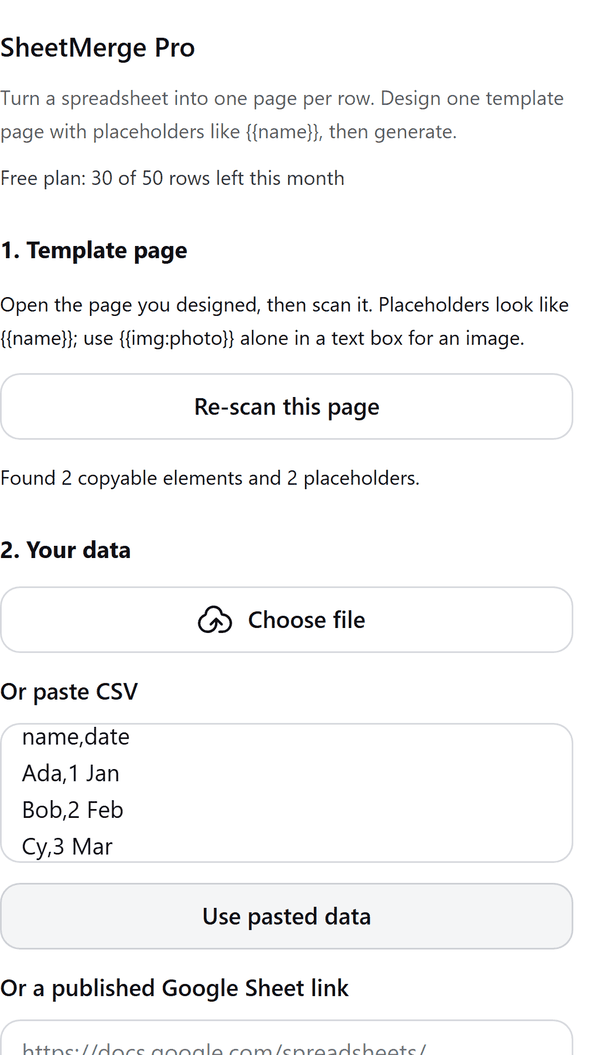
- Reads the open Canva page and finds placeholders such as {{name}} and {{date}}
- Loads data from a file (.csv, .txt, .xlsx, .xls, .ods), from pasted CSV text, or from a Google Sheet that is published to the web as CSV
- Matches each placeholder to a spreadsheet column and previews how row 1 fills the page
- Creates one page per row in your design; you can cancel a run, and resume it in a new design if Canva's page limit for a design is reached
- Fills an image placeholder when a text box contains only {{img:photo}} and the column holds an image web address
How to use it
- On one page of your design, type the text you want repeated and write placeholders in double curly brackets, for example Hello {{name}} and On {{date}}.
- Open SheetMerge Pro from the Apps tab and press Scan this page. The panel lists the placeholders it found.
- Under Your data, choose a file, paste CSV text and press Use pasted data, or paste a published Google Sheet link and press Load Google Sheet. In Google Sheets this link comes from File, Share, Publish to web, CSV.
- Under Match columns, pick the column for each placeholder. Check the Preview of row 1.
- Press Generate pages. One page per row is added to the design. Delete the template page afterwards if you do not need it.
Free and Pro
Plan limits reset each calendar month (UTC). Pro is billed through Polar.
| Free | Pro | |
|---|---|---|
| Rows a month | 50 | Unlimited |
| File, pasted text and Google Sheet data | Yes | Yes |
| Image placeholders ({{img:photo}}) | Yes | Yes |
| Price | $0 | $9 per month or $59 per year |
Manage your Pro licence
You get a licence key by email after you buy Pro. Paste it into the app and press Activate licence. To use the key on another Canva account, press Deactivate this licence first. To restore Pro after a reinstall or on a new device, activate the same key again. To cancel, use the link in your Polar receipt email. Full steps: buying, restoring and managing Pro.
FAQ
How many rows can I load?
Up to 10,000 rows from one sheet. The Free plan creates 50 rows a month; Pro has no monthly limit.
The run stopped before the end. What now?
Canva limits how many pages one design can hold. Open a new design, copy your template page into it, open SheetMerge Pro and press the resume button the panel shows.
Is my spreadsheet uploaded to your server?
No. Files and pasted text are read in your browser. A published Google Sheet link is fetched through our server so the browser can read it; the content is passed straight back and is not stored.
Which Google Sheets can I use?
Only sheets published to the web as CSV (File, Share, Publish to web, CSV). Private sheets cannot be read.
How do I get help?
Email contact@tidybutton.com with the app name and a short description of what happened. Do not send your full licence key.
What data does this app keep?
See the Privacy Policy. In short: designs and images stay in your browser; our server keeps your Canva user and brand ids, monthly usage counts and your licence status.
Contact
contact@tidybutton.com