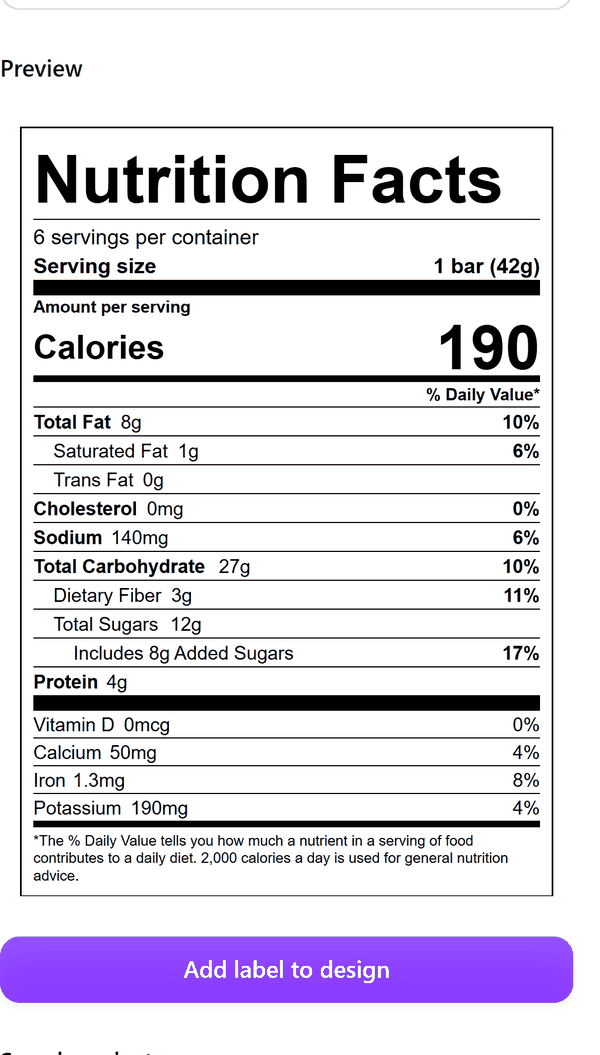
Nutrition Label
A Nutrition Facts label from your numbers, with rounding applied
What it does
- Takes the serving size, serving weight, servings per container and the nutrient amounts for one serving
- Shows what you typed next to what is printed after rounding and the % Daily Value, for example 7.6 g of Total Fat prints as 8g and 10%
- Follows the rounding rules in 21 CFR 101.9 and has a switch to print less than wording such as <1g where the rules allow it
- Draws the label in black on white at the width you choose (288 px is 3 inches) and adds it to your design as one group you can move and resize
- Lets you add optional vitamins and minerals to the table
- Pro: saves products in your browser, and adds an ingredients and allergens block under the label
How to use it
- Open a design and open Nutrition Facts label from the Apps tab.
- Type the Serving size, Serving weight and Servings per container. Press Fill in an example to see how a finished form looks.
- Type the amounts under You enter. The On the label column shows each value after rounding and its % Daily Value. A blank counts as 0.
- Choose the Format and the Width on the page. Check the Preview.
- Press Add label to design. The label is added as one group.
Free and Pro
Plan limits reset each calendar month (UTC). Pro is billed through Polar.
| Free | Pro | |
|---|---|---|
| Labels a month | 3 | Unlimited |
| Standard vertical label | Yes | Yes |
| Dual column, tabular and linear labels | No | Yes |
| Ingredients and allergens block | No | Yes |
| Saved products | No | Yes |
| Price | $0 | $5 per month or $35 per year |
Manage your Pro licence
You get a licence key by email after you buy Pro. Paste it into the app and press Activate licence. To use the key on another Canva account, press Deactivate this licence first. To restore Pro after a reinstall or on a new device, activate the same key again. To cancel, use the link in your Polar receipt email. Full steps: buying, restoring and managing Pro.
FAQ
Does the app check that my label meets the regulations?
No. It is a layout tool. You are responsible for the nutrient values and for any regulatory review of your label. Rounding follows 21 CFR 101.9; check it against the rules that apply to your product.
Can I change the label after I add it?
Yes. It is added as one group. Move or resize it like any other element.
Where are saved products kept?
In your browser only, on your device. Saving products is part of Pro.
Is the label text in English only?
Yes. The printed label keeps the wording used on US Nutrition Facts labels. Only the panel around it is translated.
What counts towards the monthly limit?
One label added. The unit is given back if Canva refuses to add the label.
How do I get help?
Email contact@tidybutton.com with the app name and a short description of what happened. Do not send your full licence key.
What data does this app keep?
See the Privacy Policy. In short: designs and images stay in your browser; our server keeps your Canva user and brand ids, monthly usage counts and your licence status.
Contact
contact@tidybutton.com