Sticker Cut Lines
A white border and a cut line around any cut-out image
What it does
- Reads the selected image's transparency in your browser (a Web Worker); no image is sent to a server
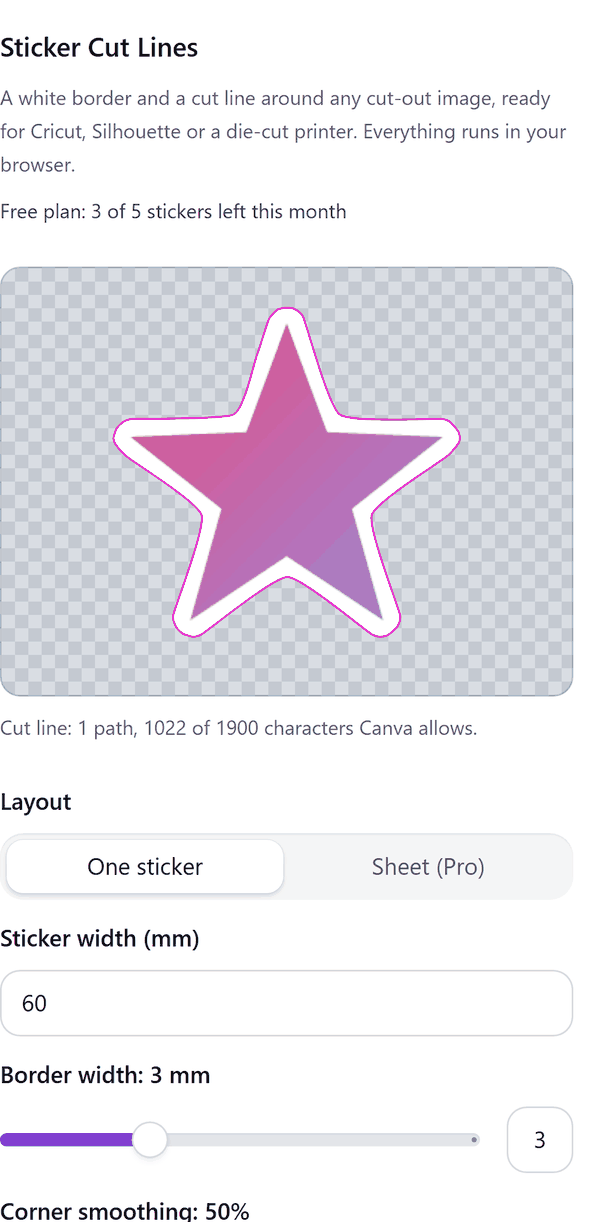
- Adds a white offset border and a cut-line shape around the outline, with controls for sticker width in millimetres, border width, corner smoothing, alpha threshold and filling holes
- Adds the sticker and its cut line to the design
- Pro: packs several stickers on a US Letter or A4 page with registration marks, adds a second larger line for kiss-cut plus die-cut, and downloads an SVG cut file
- Needs a transparent background; if the image has almost none, the panel explains how to use Canva's background remover
How to use it
- Add an image with a transparent background to your design and select it.
- Open Sticker Cut Lines from the Apps tab. The preview shows the border and cut line.
- Enter the printed Sticker width (mm) and adjust Border width, Corner smoothing and Alpha threshold until the preview looks right.
- Press Add sticker to design. The sticker and its cut line are added.
- Delete the cut-line shape before you print if your printer should not print it. Pro: choose the Sheet layout to pack several stickers, or press Prepare cut file (SVG).
Free and Pro
Plan limits reset each calendar month (UTC). Pro is billed through Polar.
| Free | Pro | |
|---|---|---|
| Stickers a month | 5 | Unlimited |
| Sticker size | Up to 1500 px | Up to 4000 px |
| Sticker sheets (Letter or A4) | No | Yes |
| Kiss-cut and die-cut double line | No | Yes |
| SVG cut file | No | Yes |
| Price | $0 | $5 per month or $35 per year |
Manage your Pro licence
You get a licence key by email after you buy Pro. Paste it into the app and press Activate licence. To use the key on another Canva account, press Deactivate this licence first. To restore Pro after a reinstall or on a new device, activate the same key again. To cancel, use the link in your Polar receipt email. Full steps: buying, restoring and managing Pro.
FAQ
Does it remove backgrounds?
No. Use Canva's own background remover first. The app needs transparent pixels around the artwork.
Are the Cricut and Silhouette areas exact?
Cricut's maximum print areas are taken from its help page. The sheet area the app uses is a cautious box inside them and is marked approximate in the panel. Silhouette publishes no figure, so check Show Print Border in Silhouette Studio before a big run.
Do my images leave my computer?
No. All pixel work is done in your browser.
Does the sheet include Cricut's registration marks?
The marks added are generic corner marks. Cricut Design Space draws its own marks when you upload a flat image, and the panel says so.
How do I get help?
Email contact@tidybutton.com with the app name and a short description of what happened. Do not send your full licence key.
What data does this app keep?
See the Privacy Policy. In short: designs and images stay in your browser; our server keeps your Canva user and brand ids, monthly usage counts and your licence status.
Contact
contact@tidybutton.com